 Kimai Docs
This screen and the Contract menu can be seen by any user that has active contract settings and the ones that own the contract_other_profile permission (see Permissions below).
User interface
- Summary: summary of your working times and the manual bookings
- Target-hours: the list of the expected working hours for each day of the week
- Working times: the entire working year
- Manual bookings
Summary
The summary contains the following information (where each column is one month):
- one row for working times
- one row for manual bookings, requires the
view_booking_contractpermission
Working times
Contains the entire year with the following information:
- the expected working time for each day of the week
- the actual working time for each day of the week
- the difference between expected and actual working time
- the total working time for each month
- the total working time for the entire year
- blue dots for days with either
- a public holiday
- any kind of absence
Lock a month
After a month is over and the employee working-times were verified for correctness, the month should be “locked”.
You can right-click the row or use the action menu at the end of the monthly row to lock the selected month:
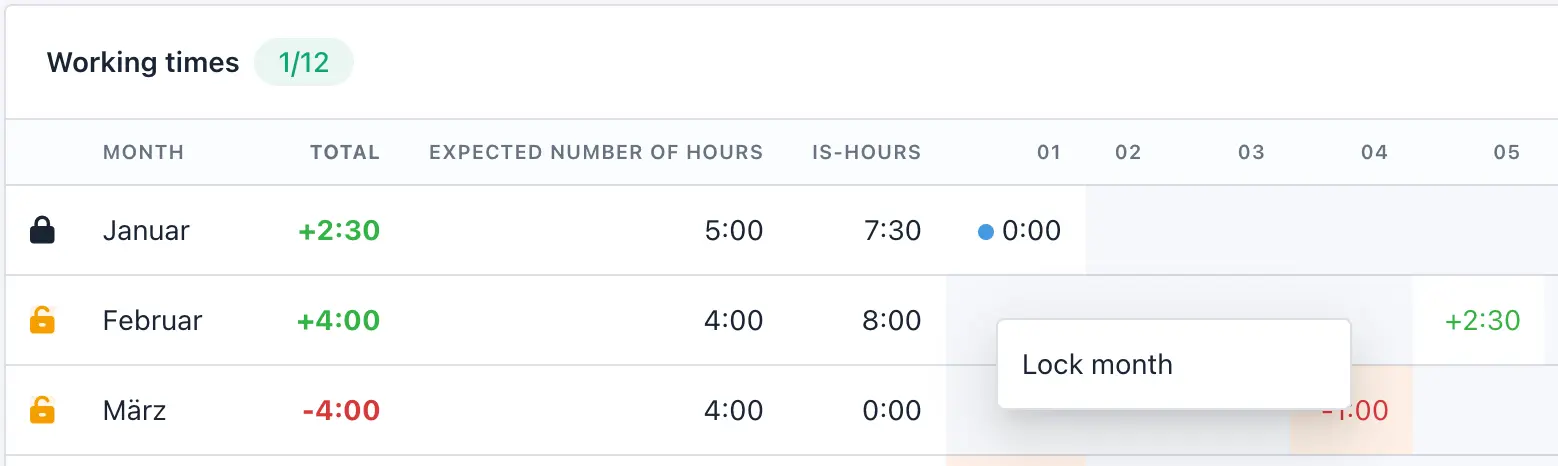
Whether a month is locked (closed black lock) or not (open orange lock) is indicated by the icon in front of the row.
Locking a month will lock all days of the year before the chosen date:
If previous months were not locked, they will be locked automatically as well.
Unlock a month
Unlocking a month should be avoided in general, but if you have to adjust an already locked month, someone with the permission unlock_times_contract can unlock it.
You can right-click the row of the locked month or use the action menu at the end of the monthly row to unlock the selected month.
Unlocking a month will unlock all locked days of the year after the chosen date:
If later months were locked, they will be unlocked automatically as well.
Changing a work contract
If you change a users expected hours, it will influence all non-locked times. It is therefore necessary to lock all months (see above) in which the old employment contract settings were valid BEFORE you change the settings.
After you locked all previous months, you can safely change the expected working time settings.
As you can only lock complete months, it is currently only possible to change the employment contract at the beginning of a month.
But the contract changes mid-month
In that case you ca use this workaround: close all previous months first to protect historical data. Leave the current month calculated under the old contract — any difference in hours will appear as overtime or missing hours. Use the Manual Booking feature to correct these discrepancies for the affected period, and add a note referencing the contract change as the reason. Once the new month begins, lock the transition month and update the contract. The new hours will then apply going forward without affecting past records. Keep old months locked — reopening them will cause hours to recalculate under the new contract, corrupting historical data.
Manual bookings
Attention: perform tests on a separate test account (or the demo environment).
You cannot delete manual bookings, so if you accidentally added wrong values, simply create an opposite booking and add a note like “compensation for test booking” in the description.
Account working times
Manual bookings can be used to increase or reduce the users time account.
Popular examples are:
- adding a positive amount of hours ⇒ taking over hours from the last year
- removing a negative amount of hours ⇒ payment to compensate for plus hours
Holidays
Manual bookings can be used to increase or reduce the users available holidays.
Examples are:
- adding a positive amount of days ⇒ taking over holiday from the last year
- removing a negative amount of days ⇒ old holidays which were not taken on time expired
Why immmutable?
Manual bookings directly affect an employee’s working time balance. This balance determines overtime, compensation, and holiday entitlements — making it financially and legally relevant for both employers and employees. Kimai deliberately prevents editing or deleting manual bookings. This design follows the same immutability principle that applies to other legally relevant records, such as vehicle logbooks or accounting ledgers.
Working time records flow into payroll and are subject to regulatory requirements. These require that records are traceable, complete, and tamper-proof. Corrections must not overwrite or remove the original entry — they must be documented as separate, visible transactions. A system that allows silent modification of records may be rejected during an audit, regardless of whether actual manipulation occurred. An immutable record protects employees from having their time balance quietly reduced, and it protects employers from accusations of manipulating working time data. Both parties can always trace what was booked, when, and why.
Fixing invalid manual bookings
Corrections must be made through counter-bookings: a new booking with the opposite value and a note explaining the reason.
How calculations work
Kimai compares two values for every single day: the expected time (from the employment contract) and the actual time (from the recorded timesheets). Which timesheets are used for the actual time depends on the configured calculation mode, see “Working time calculation modes” below.
Kimai only calculates working time up to the current moment. This means that adding a holiday for tomorrow, or any other future absence, will not affect your hour balance yet.
Please read the chapter “How absences affect expected working time” to understand why the Working times view may show different totals than My times for the same year.
In short: depending on the configured absence calculation mode, the reported annual working time can be significantly higher than the hours recorded in timesheets.
The calculation mode is configured per absence type with the Count as expected hours settings in System → Settings.
Be aware that these settings use the internal absence type names: Holiday means vacation, Public holiday refers to the public holiday administration and Absence means the absence type Other.
Absences compensate expected working time
This is the behaviour when the matching Count as expected hours setting is activated.
- Public holidays — The configured working time for that day is added as worked time. If you create a timesheet on the same day, it is counted as overtime.
- Vacation — The configured working time for that day is added as worked time. If you create a timesheet on the same day, it is counted as overtime.
- Sickness — Fills up the remaining working time for the day until the expected duration is reached. For example, if the expected time is 8 hours and 2 hours have already been recorded, the sickness absence adds 6 hours.
- Other — The configured absence duration is added as worked time.
- Time-Off — Does not affect working time calculations. This entry is for informational purposes only.
Absences reduce expected working time
This is the behaviour when the matching Count as expected hours setting is deactivated.
- Public holidays — Reduces the expected working time for that day to 0. If you create a timesheet on the same day, it is counted as overtime.
- Vacation — Reduces the expected working time by the duration of the absence. A full-day vacation reduces it to 0. A half-day vacation reduces it accordingly. If you create a timesheet on the same day, it is counted as overtime.
- Sickness — Reduces the remaining expected working time for that day. Either to 0 or for example, if the expected time is 8 hours and 2 hours have already been recorded, the remaining 6 hours are removed from the expected time.
- Other — Reduces the expected working time by the configured absence duration.
- Time-Off — Does not affect working time calculations. This entry is for informational purposes only.
Working time calculation modes
By default, Kimai adds up all timesheets of a day to calculate the actual working time.
With the setting Only count entries of the selected project as working time in System → Settings you can change that, so only the timesheets of one single project are used.
This changes nothing about the way the working time is calculated — it only changes which timesheets are taken into account. Everything else (expected time from the contract, absences, public holidays, manual bookings, locking of months) behaves identically in both modes.
Neither mode is better than the other. They describe two different ways of working, and you should pick the one that matches how your company records time.
All timesheets (default)
No project is selected, and every timesheet a user records on any project counts towards the actual working time.
Attendance and project work are the same data: the working day is a chain of consecutive timesheets. The employee starts a record when arriving, switches the project or activity whenever the task changes, and stops the last record when leaving. Time that cannot be assigned to a customer project (internal meetings, administration, training) still has to be recorded on some project, otherwise it is missing from the balance.
Advantages
- Easy to understandEvery recorded minute counts, so nothing can be lost by forgetting a second, separate record.
- Project times and the time account validate each other: if the sum of the project times is wrong, the balance is visibly wrong as well.
Disadvantages
- When mixing project and attendance entries, you create many records per day and a lot of switching.
- Every kind of non-project time needs its own “catch-all” project, otherwise the balance drops.
- Gaps between records reduce the balance, as they look like a break.
Attendance project only
One project is selected as the attendance project. Only the timesheets of that project are used to calculate the actual working time — all other timesheets are ignored for the employment contract.
Those other timesheets are not deleted or changed in any way: they are still visible in My times, in all reports, exports, invoices and budgets.
They simply no longer influence the time account.
The working day now looks different: the employee starts one record on the attendance project in the morning and stops it in the evening. The real project times are recorded in parallel to this attendance record, and they can have gaps — they no longer need to cover the entire day.
Advantages
- Attendance (when was the employee at work) and project work (what did the employee do) are separated.
- Project times no longer have to be gapless and can be recorded with the detail level that makes sense for controlling and invoicing.
- Fewer records and less timesheet switching during the day.
Disadvantages
- The employee has to remember two things instead of one: the attendance record and the project times.
- If the attendance record is missing, the day counts as zero actual time — even if project times were recorded for it.
- Overlapping and parallel records have to be allowed for everybody (see below), which also allows them everywhere else.
- Not all widgets and reports take this setting into account (we work on that).
Configuring the attendance project
The project is selected in System → Settings with the setting Only count entries of the selected project as working time.
- Only one single project can be selected.
- The setting is global for the entire installation. There is no exception for single users, it applies to everyone.
- If the field is left empty, Kimai uses mode 1 (all timesheets).
Two further settings in System → Settings have to be adjusted, because the attendance record and the project record run at the same time:
Allow overlapping time entrieshas to be activatedMaximum number of active/running entrieshas to be at least2
Both are required. If only one of them is changed, the employees cannot record their project times while the attendance record is running.
Recording breaks
There are two ways to record breaks in the attendance mode, and which one fits depends on your company and on the legal requirements you have to fulfil. Some countries require the begin and the end of a break to be documented, others only require its duration.
- Stopping and restarting the attendance record — the employee stops the attendance record when the break starts and creates a new one when the break ends. This results in several attendance records per day and documents the exact begin and end of every break.
- Using the
Breakfield — the employee keeps one single attendance record for the entire day and enters the break duration in theBreakfield of that record. Kimai subtracts this duration from the record, so only the duration of the break is documented, not its position within the day.
Both variants reduce the actual working time by the same amount.
Switching between the modes
Kimai does not store the actual working time of a day permanently. As long as a month is not locked, the values you see are recalculated from the timesheets every time the Working times screen is opened.
Only when a month is locked, the calculated values are written to the database — and from then on they are never recalculated again.
This is why the switch between the two modes must be prepared carefully:
Lock all previous months before you change the setting. This includes the months of all previous years. As only the selected year is calculated at a time, you have to open every past year and lock its months individually.
If you skip this, all days that are not locked will be recalculated with the new rule as soon as you save the setting. Switching to the attendance project mode would then set the actual time of all those past days to zero (no attendance records exist for them yet), which results in a massive negative balance for every employee. Switching back has exactly the same effect in the other direction.
Because months can only be locked completely, the switch is only possible at the beginning of a month. Plan it accordingly: lock everything up to the end of the current month, inform your employees about the new way of recording, and change the setting when the new month starts.
Limit timesheets to working days
There is a validation called Allow time entries only for days for which expected hours are defined in the employment contract, which can be activated in System → Settings and helps to restrict timesheets to contractual working days.
Once activated, users cannot create timesheets for days without active contract setting.
So a user who works Monday to Thursday cannot create timesheets for Fridays.
In order to help with exceptions, there is a permission called workdays_override_timesheet, which allows to override this validation.
This permission should be granted to employees e.g. from HR department.
Carry over your time balance to the next year
At the end of the current year (or begin of the new year) and once you figured out the final balance of an employees time account, you have to roll over the hours to the next year:
- Go
Employment contract > Working Times - Click on the year dropdown and select the correct entry or click on the button to move to the next year
- Scroll down and create a
Manual booking(see above)
Video
There is older video available, explaining more details, but be warned: it also has a few outdated information bits.
Settings
You can configure these at System → Settings.
Absence: Comment is a mandatory field— Whether users have to enter a comment with their absence requestsAllow half days for holidays— Whether users can request half days of vacation. Turn it off if you only agree to full vacation daysAllow time entries only for days for which expected hours are defined in the employment contract— Prevents timesheets on days without expected working hours, e.g. a user working Monday to Thursday cannot record time on Fridays. The permissionworkdays_override_timesheetallows to bypass this validationOnly count entries of the selected project as working time— If a project is selected, only timesheets of this project are used to calculate the actual working time and all other timesheets are ignored for the employment contract. Leave it empty to count all timesheetsPublic holidays— The service used by the import dialog in the public holiday administration.Yasumiis the recommended default, useGoogleonly if Yasumi does not return any results for your country or regionCount as expected hours: Public holiday— When enabled, a public holiday counts as worked hours towards the expected daily hours. When disabled, the expected hours for that day are set to 0Count as expected hours: Sickness— When enabled, a sickness fills up the remaining hours of the day until the expected duration is reached. When disabled, it reduces the remaining expected hours of that day insteadCount as expected hours: Absence— Applies to the absence typeOther. When enabled, the configured absence duration counts as worked hours. When disabled, it reduces the expected hours by the same durationCount as expected hours: Holiday— Applies to vacation. When enabled, the vacation counts as worked hours towards the expected daily hours. When disabled, it reduces the expected hours by the duration of the vacation
The four Count as expected hours settings control the absence calculation mode and can be configured individually for every absence type.
Please note that the labels use the internal absence type names: Holiday means vacation, Public holiday means a day from the public holiday administration and Absence means the absence type Other.
The absence type Time-Off has no setting, because it never influences the working time calculation.
Permissions
| Name | Description |
|---|---|
contract_other_profile |
Allow to see and change the contract settings of other users |
hours_own_profile |
View the Employment contract menu and the own “Working times” |
hours_other_profile |
View the Employment contract menu. Switch the user in the Working Contract screen |
view_booking_contract |
View working-time details (PDF, Manual bookings) |
approve_times_contract |
Approve monthly timesheets |
unlock_times_contract |
Re-open an already locked month |
create_booking_contract |
Allows to create manual time bookings |
workdays_override_timesheet |
Allows to create timesheets on non-working days, if this restriction is activated in System → Settings |
Read how to assign these permissions to your user roles in the permission documentation.
Related articles
- Absence – Managing absences
- Public holiday – Configure public holidays for your employees with working contracts.